
Key facts
| Individual scheduling | Free and Basic, subject to Free usage limits. |
|---|---|
| Crews, skills, leave and job series | Professional. |
| Assisted schedule | Select work, configure, preview and apply the reviewed plan. |
Build and review tomorrow’s AxiomBlue assignments
- Open each job’s Job Details and record Site Address, Estimated Duration and the work in Description. Check the existing bookings; on Professional, keep crew membership, Required Skills and approved leave current.
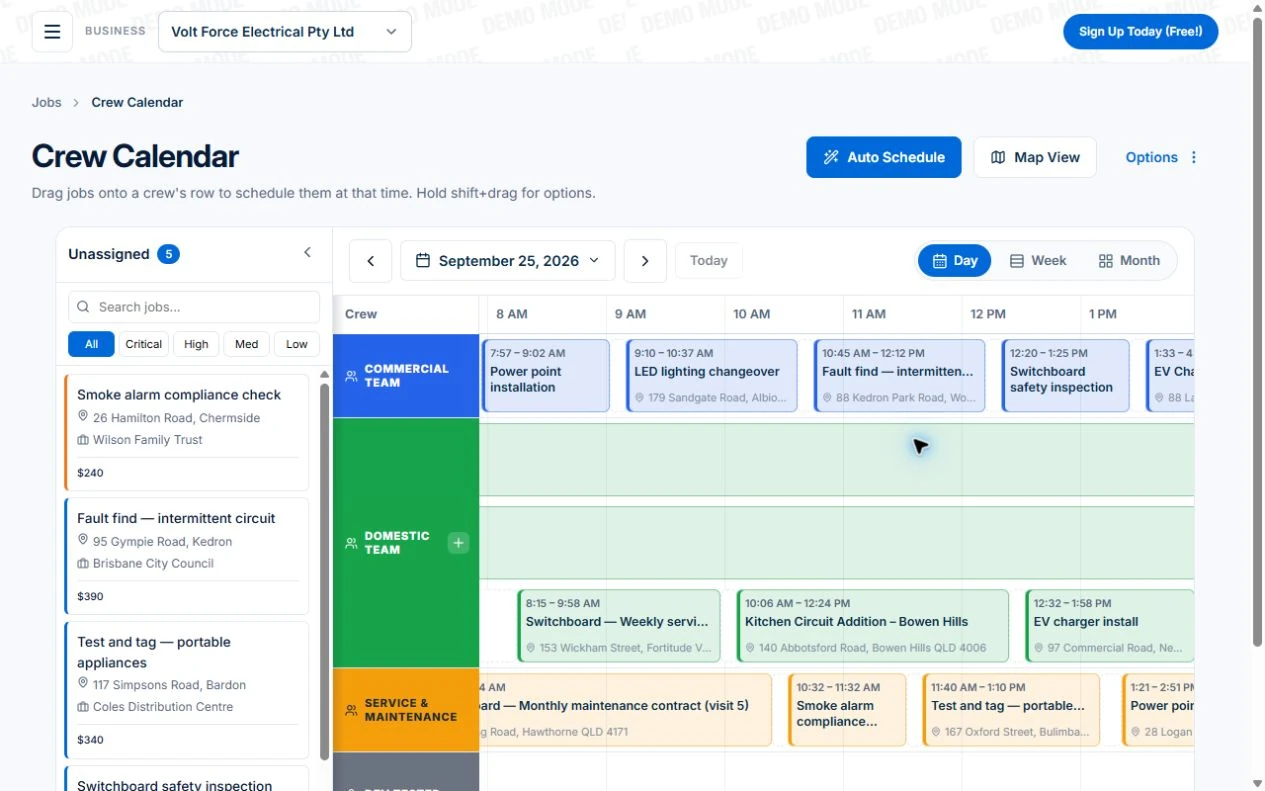
- Open Calendar & Schedule → Auto Schedule and select the unassigned installation, service visit and call-out. Configure the available constraints, then preview. Inspect the proposed people, times, travel, warnings and jobs left unplaced; missing travel information needs an address check.
- Apply the reviewed proposal and inspect the changed job records. For the urgent request, preview a fresh plan using the updated availability. Confirm new arrangements separately and put the current field instructions in Description or Tasks.
Test the schedule when an urgent job arrives
Use a familiar day with an agreed appointment and a flexible visit. Add an urgent call-out, then check the consequences for the people and customers before applying a new plan.
| Situation | Review before committing |
|---|---|
| A visit runs over | Check remaining duration and the next agreed appointment. Tell the affected people what changed. |
| A job needs a particular skill | Confirm suitable people and equipment. Managed skills and crews require Professional in Axiom Blue. |
| An urgent call-out arrives | Preview proposed assignments and any work the scheduler could not place; choose a plan you can deliver. |
| A booking moves | Confirm the revised appointment and access arrangements, then check the team received the update. |
Read next Job scheduling software: test a changing day → · Job allocation software: preview crew assignments →
Give each job enough information to schedule
A job called “repair” is difficult to allocate. Record the site, the likely scope, access arrangements and the people or equipment needed. Estimate the duration using what is known, and make uncertainty visible rather than turning it into a precise-looking promise.
Separate an appointment the customer has agreed from a flexible piece of work. This tells the scheduler which jobs can move when the day changes.
- Site and customer contact
- Expected time on site and travel considerations
- Required skills, crew size and equipment
- Access constraints and agreed appointment details
Use the calendar for time and the map for location
Start by checking availability and assigning suitable people. Then look at the geography. Two short jobs on opposite sides of the service area may be a worse fit than a longer job near the crew’s existing work.
Axiom Blue’s crew calendar and Dispatch Map support these different views of the day. The map shows job locations and crew routes; it should not be interpreted as a promise of live vehicle tracking. Route optimisation is a Professional feature, and the resulting plan still needs your review.
When the urgent request arrives, change the plan deliberately
Confirm what the new job needs before moving the existing work. Check which appointment or crew assignment would be affected and whether the replacement person has the detail needed to finish the job.
Update the job and schedule first, then communicate the change using your usual customer and team process. Avoid leaving the calendar saying one thing while a message thread says another. Record any new promise to the customer in the job.
Learn from the day without building an impossible schedule
Compare estimated and recorded time for a few common job types. Look for repeated overruns, return visits caused by missing parts and routes that force the crew to cross the same area twice. These are inputs for the next plan, not reasons to remove every spare minute.
For repeat services, organise a recurring job series and review the individual visits. Recurrence creates a pattern; weather, access and staff availability still need human decisions.
Common questions
Questions people ask before they switch
Does assisted scheduling reassign work unattended?
No. It proposes assignments for you to review and apply. Check the jobs it could not place and any affected appointments before applying the preview.
Which plan supports crews and leave?
Professional supports managed crews, skills and leave. Free and Basic schedule people individually; the free plan also has usage limits.
What should an allocation system know about the job?
Record its site, expected duration, agreed appointment, access requirements and suitable people or equipment. Make uncertainty visible rather than treating an empty calendar slot as proof the job will fit.
Put it to work
Your practical checklist
- Schedule an ordinary job and one that needs a particular crew.
- View their locations on Dispatch Map.
- Try a reassignment and inspect the job detail.
- Check which customer commitments would change.
- Review an upcoming recurring visit.
See the records in Axiom Blue
Try the workflow with a familiar job.
Features and usage limits vary by plan. Review the tools relevant to your process before choosing your setup.