
Put the work in context
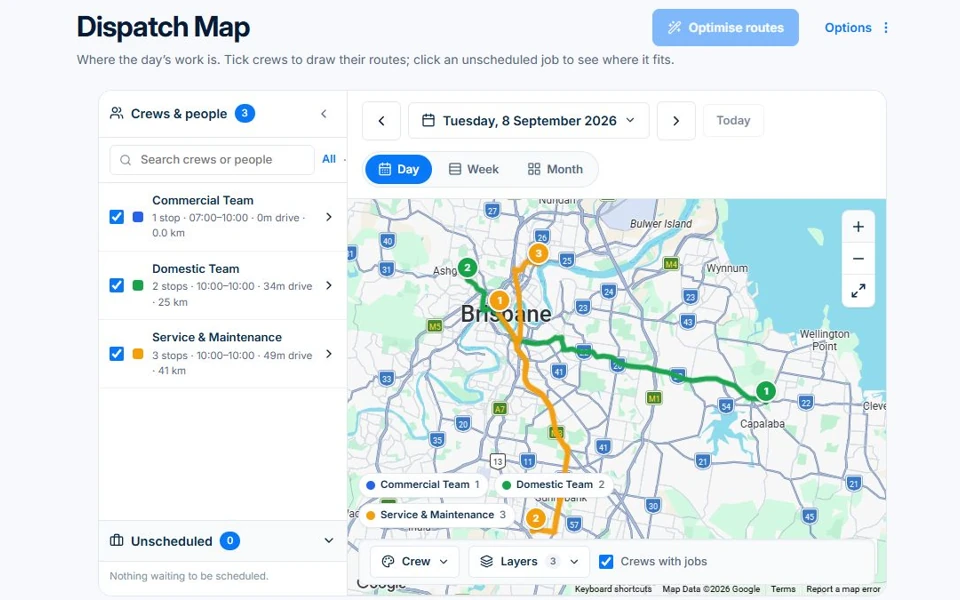
See located jobs on a map and filter the crews you want to plan.
Dispatch Map / AxiomBlue
AxiomBlue Dispatch Map shows job locations and planned crew routes, so you can assess a new call-out alongside the stops already booked. Select the day and crews, inspect the job details and use a runsheet for the planned work. Professional adds route optimisation for reviewing the order of visits.
See located jobs on a map and filter the crews you want to plan.
Plan fit: The map and route optimisation have different access requirements. Route optimisation requires Professional; the map follows your job access. Compare plans →
The part of your day this changes
The customer address is only part of a dispatch decision. Review the located jobs, crew route and job details together before changing the runsheet. Route optimisation is a Professional tool for reviewing visit order.
See located jobs on a map and filter the crews you want to plan.
Review unscheduled jobs alongside planned stops before placing the work.
Use printable runsheets, map/table views and a link to the selected view. Professional adds route optimisation.
Picture it in your business / Example
Check where the customer is, compare the nearby planned work and review the appropriate crew. Use the map as a planning aid alongside the job details and schedule.
A practical starting point
Choose a day or week and the crews to show.
Open jobs and inspect the locations and route context.
Place unscheduled work or review route optimisation with the required plan.
Know what’s included
The map and route optimisation have different access requirements. Route optimisation requires Professional; the map follows your job access.
Compare plans, limits and pricing →Check the workflow in detail
Explore the detail
Availability varies with plan, permissions and enabled features. Check plan inclusions.
See how this fits: organise your work →Before you get started
Have a specific workflow in mind? Talk it through with us.
Jobs & Crews → Dispatch Map. Available controls depend on your permissions and enabled features.
The map and route optimisation have different access requirements. Route optimisation requires Professional; the map follows your job access.
Start with a familiar example of your work. Follow the steps on this page, check the records and confirm the plan inclusions you need before rolling it out to the team.
Keep the work connected
Considering a switch?
Use a familiar job to compare the way you work today with the way Axiom Blue handles it.
Check the quote, schedule, job record and invoice. Look for the details your team needs.
Compare usage limits, paid seats and specialist features. See plans and pricing →
Try your own quote on the free plan. Before moving existing records, ask us about your data and setup needs.
Make the next step a small one
You know where the friction is in your business. Open the demo and see how AxiomBlue handles it. Then start with your own quote on the free plan.
Free plan has usage limits. No time limit. No credit card.
Try a quote like one you send every week. Check the detail your customer will see.
Explore a job, its crew, time and materials. Look for the information you usually chase.
Compare the features and limits you need. See plans and inclusions →