
Record and review a job’s time in AxiomBlue
- Open the job from the worker’s schedule and check its number and Description before clocking in. Clock out when the work stops; use the actual job rather than a generic daily total.
- In the job’s Time Tracking card, review the person, start, finish and hours. An authorised reviewer can use Add Entry or edit the record for a missed entry. Explain a correction in the job record and review the Billable setting against the charging agreement.
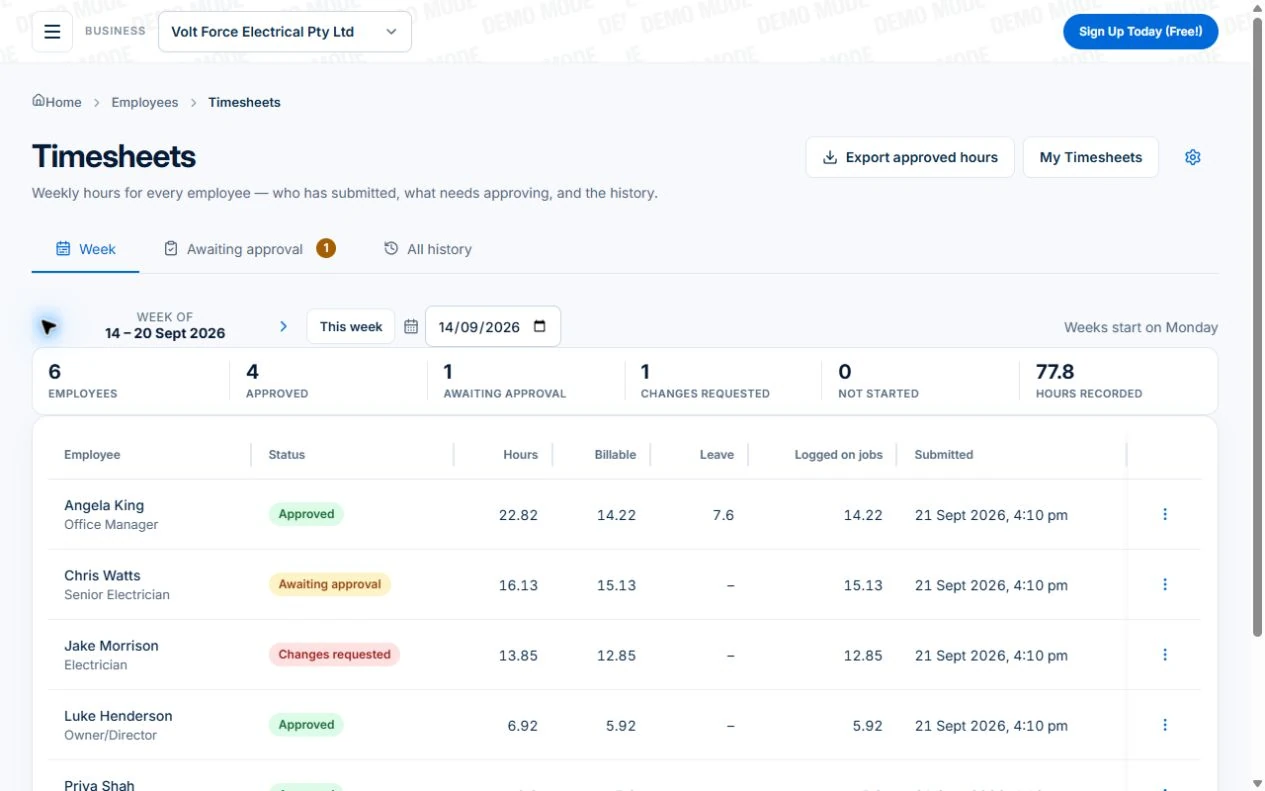
- On Professional, review the weekly timesheet, resolve exceptions and export approved hours for your payroll process. Compare fixed-price job time with the estimate as a cost check; do not add that time to the customer’s invoice merely because it was recorded.
Agree what a useful time entry contains
Make the routine clear before asking staff to follow it. Decide who records the work, when entries are completed and what detail is needed to understand an unusual entry. Use the same job reference that the office uses for the quote and invoice.
A short note can explain why a second visit took longer than expected. It is more useful than a vague description copied across every day. Avoid turning each entry into an essay; collect the detail that helps review.
- The person and the correct job
- The date and time or duration of work
- A description when the work needs explanation
- Any correction or exception the reviewer should understand
Make review part of the working day
Review time while the people involved can still explain it. Look for entries against the wrong job, duplicate records, missing days and durations that need clarification. Resolve those questions before using the records for billing or cost review.
Nominate who can correct an entry and how a correction is communicated. Silently changing a weekly total can create a different problem for the worker and the person preparing the invoice.
Do not confuse recorded time with billable time
A worker may spend time collecting materials, returning to fix an issue or completing a fixed-price job. The record should explain what happened even when the customer is not charged for every hour.
Your pricing agreement determines the bill. Review recorded time alongside the contract, billing rules and any approved changes. A timer stopping is not, by itself, a reason to charge the customer.
Test time tracking in the same place as job records
In Axiom Blue, inspect the time records on a job alongside materials and billing. Check the permissions for the person recording the entry and the person reviewing it. Test an ordinary day and a correction, rather than just starting a timer.
Job time tracking is not a promise of payroll, award interpretation or automatic geofenced attendance. If you use another system for pay, confirm how reviewed information will move between your processes before relying on it.
Make it useful today
Print or keep a working copy.
Each resource includes a blank worksheet and an illustrative example. Open it to print, or download an HTML copy to keep. No signup needed.
Put it to work
Your practical checklist
- Record time against a sample job.
- Check what the office can review.
- Try a correction and confirm the result.
- Compare a fixed-price job with time-based billing.
- Confirm the separate payroll handover.
See the records in Axiom Blue
Try the workflow with a familiar job.
Features and usage limits vary by plan. Review the tools relevant to your process before choosing your setup.