
Hand over an electrical return visit through AxiomBlue records
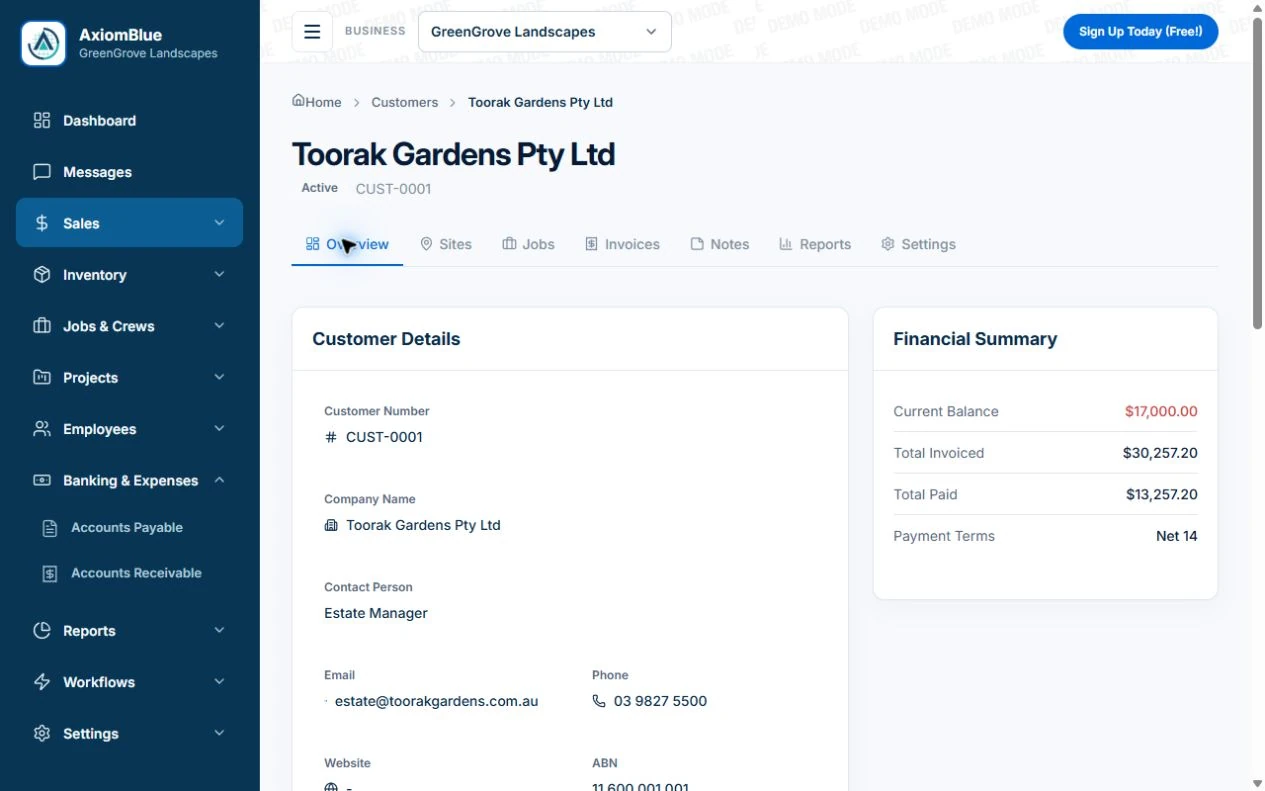
- Create the customer in AxiomBlue Sales → Customers and identify the property/site used by the job. Keep the billing and work-approval contacts clear rather than using the occupant’s name for every role.
- In the job Description, identify the installation, diagnosis, approved replacement and earlier job reference. Use Tasks for the outstanding authorised work; retain testing/certificate references through the proper process and uploads on Basic or Professional.
- Open the return job from the electrician’s account and verify the installation, parts and current work. Record the outcome there so another visit can distinguish the booking from the completed repair.
Distinguish the person who calls from the site and payer
Record the customer and billing contact, then identify the property where the work occurs. A property manager, occupant and owner may have different roles. Confirm who can approve extra work and which reference belongs on the invoice rather than assuming the person opening the door is the payer.
Give the job a specific installation reference
Use a clear location or equipment description that a suitably qualified person can recognise. Keep the inspection finding, accepted scope, relevant testing or certificate references and outstanding action with the job. These records support the handover; they do not replace the required authorised testing or certification process.
- Customer and payer reference
- Site address and access contact
- Installation or affected-area reference
- Accepted scope and change approval
- Work completed, required document references and next action
Test the record with a return visit
Illustrative case: the first visit diagnoses a fault and the customer approves a replacement. Another electrician returns with the part. Ask them to find the diagnosis, approved work and what still needs checking without relying on a phone explanation. Record the actual return outcome, not just the date booked.
Make the next visit usable from the field account
Keep lasting site detail separate from today’s scope and unresolved tasks. In AxiomBlue, the separate customer-site notes field is available in the web app; put the instructions needed by a native-app worker in the job description or tasks. Verify access from the worker’s account. Uploads need Basic or Professional; Free has customer and usage limits.
Restrict sensitive access information and share only what the person needs. Check current details with the customer instead of carrying an old instruction into every future job. Professional adds crew management and recurring job series where those suit the work.
Sources: Protect customer information
Common questions
Questions about this process
Where should instructions for the native app go?
Use the job description or tasks for instructions required on that visit. The separate customer-site notes field is shown in the web app; verify the worker’s actual view.
Put it to work
Your practical checklist
- Separate customer, site, approver and payer.
- Identify the installation and current scope.
- Retain document references through the proper process.
- Make unfinished work and its owner visible.
- Test the return handover on the field device.
See the records in Axiom Blue
Try the workflow with a familiar job.
Features and usage limits vary by plan. Review the tools relevant to your process before choosing your setup.